
WooCommerce restaurant ordering plugin
Online ordering for your restaurant, on your own site.
A menu your guests order from on any phone. Delivery, pickup or eat in, an address check before they order, and a time that fits your kitchen. Six ready-made designs, and the WooCommerce checkout you already use.
300+ sites on the free version
★★★★★ 20 five-star reviews
No commission per order
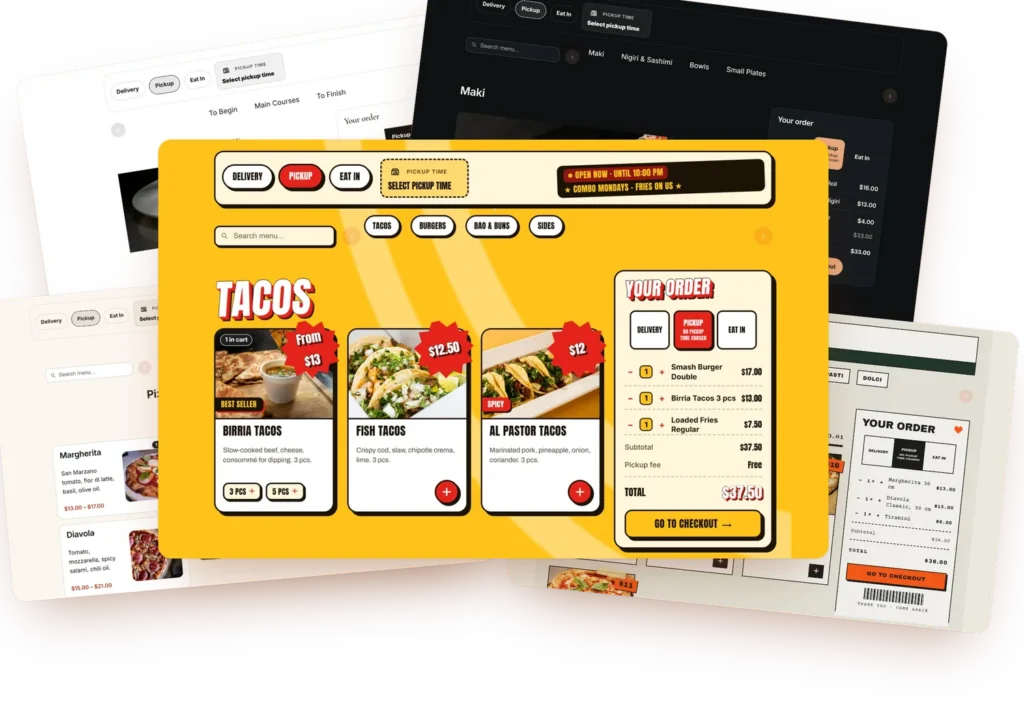
Your menu. Your orders. Your customers.
Food Online turns WooCommerce into an ordering system for your restaurant. Guests order from one menu page, choose delivery, pickup or eat in, pick a time and pay in the WooCommerce checkout. Everything runs on your own site.
On a delivery platform
- A commission on every order
- Their app and their design
- Guests order through their brand
With Food Online
- No commission per order
- Your own design, on your own site
- Orders and customers stay in your WooCommerce
Six ready-made designs
Six designs. One click.
Choose a design in the Food Online Menu block and you are live. Each one sets colors, fonts, cards and the product popup in one go. Then change anything you like in the block settings, or choose Custom and design it from scratch.
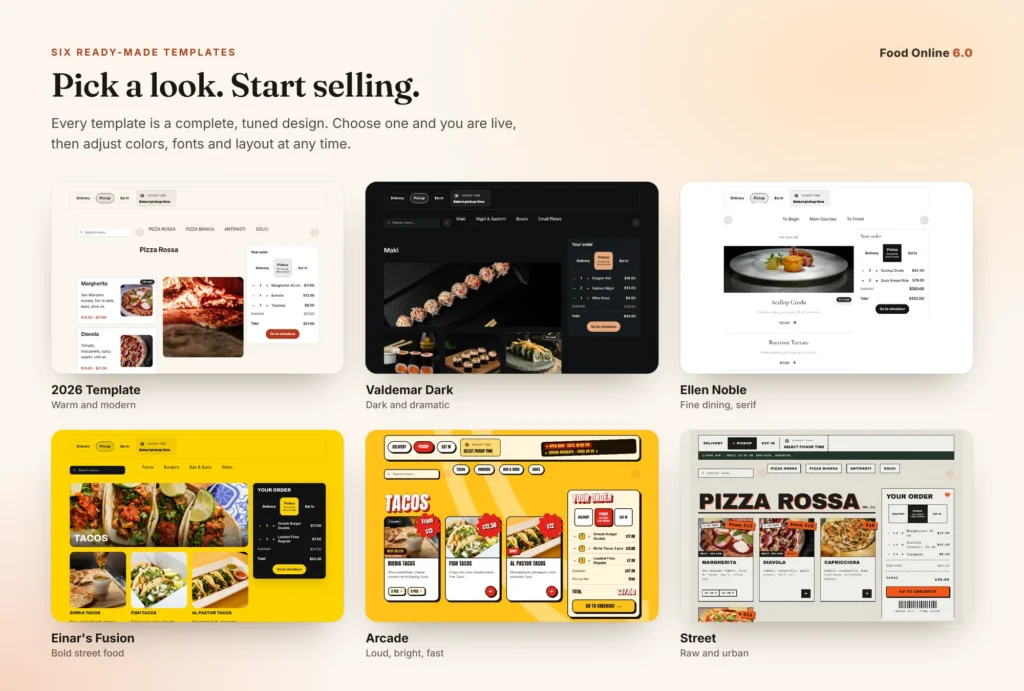
2026 Template
Pick one accent color. Categories, images and the product popup are laid out for you.
Valdemar Dark · Ellen Noble · Einar’s Fusion
Complete designs with their own colors, fonts and card style.
Arcade · Street
Bold and graphic, with big type and strong colors.
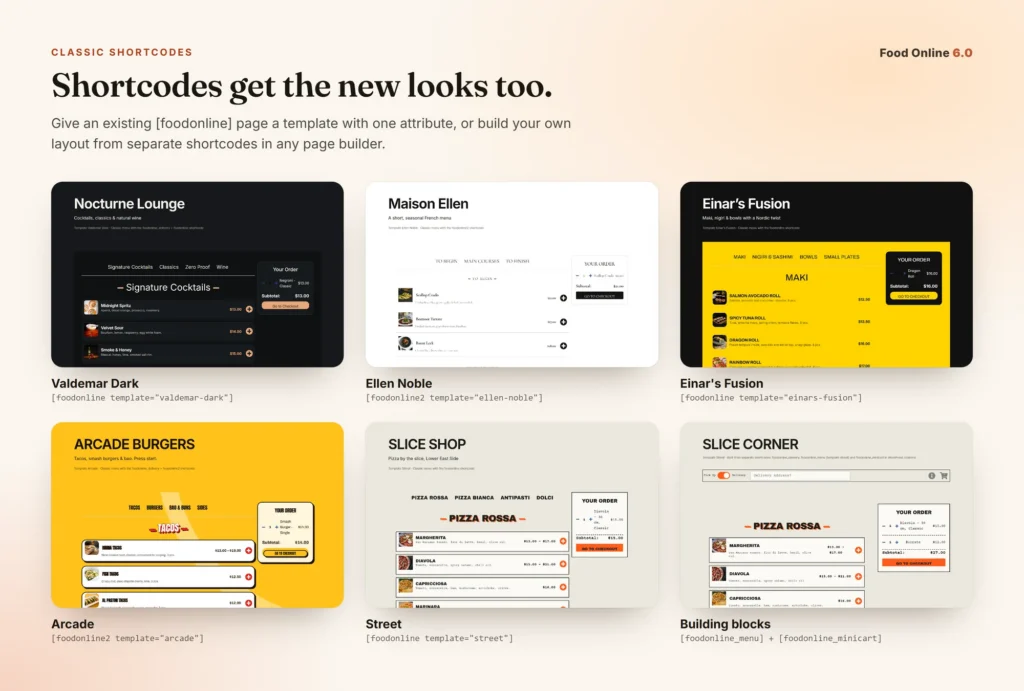
The same designs work for the classic [foodonline] shortcode. See how →
Features
Everything a restaurant needs to take orders.
From the first dish on the menu to the order in the kitchen.
Modes Premium
Pick up, delivery or eat in
Choose to display the delivery switch and let your customers select if they want Home Delivery or if they want to pick up the order at the restaurant. It is also possible to let them choose to eat their food at the Restaurant.

Address Premium
Address & postcode check
Delivery addresses can be Google validated on the Menu page and will then be automatically inserted at the shipping address form on checkout. A postcode check works without Google.
Time Premium
Time picker with capacity
Let customers choose the Delivery or Pick up time with a Time Picker. Stop taking orders for a time when it is full, counting orders or items.
Schedules Premium
Opening hours per mode
Set scheduled time slots for delivery, pick up and eat in and make them available for a single or a group product categories or tags.
Order time
When will it be ready?
Calculate and Show the time until the order will be ready. If it is a delivery order, the shipping time can be calculated with help of Google.
Locations Premium
Multiple restaurants
You can have several locations where customers can pick up their food, each with its own hours and its own order email.
Dishes
Sizes, sides and options
With product attributes you can offer your dishes with varieties of size, protein etc. The plugin is compatible with WooCommerce Product Add-Ons if you want to offer even more product options.
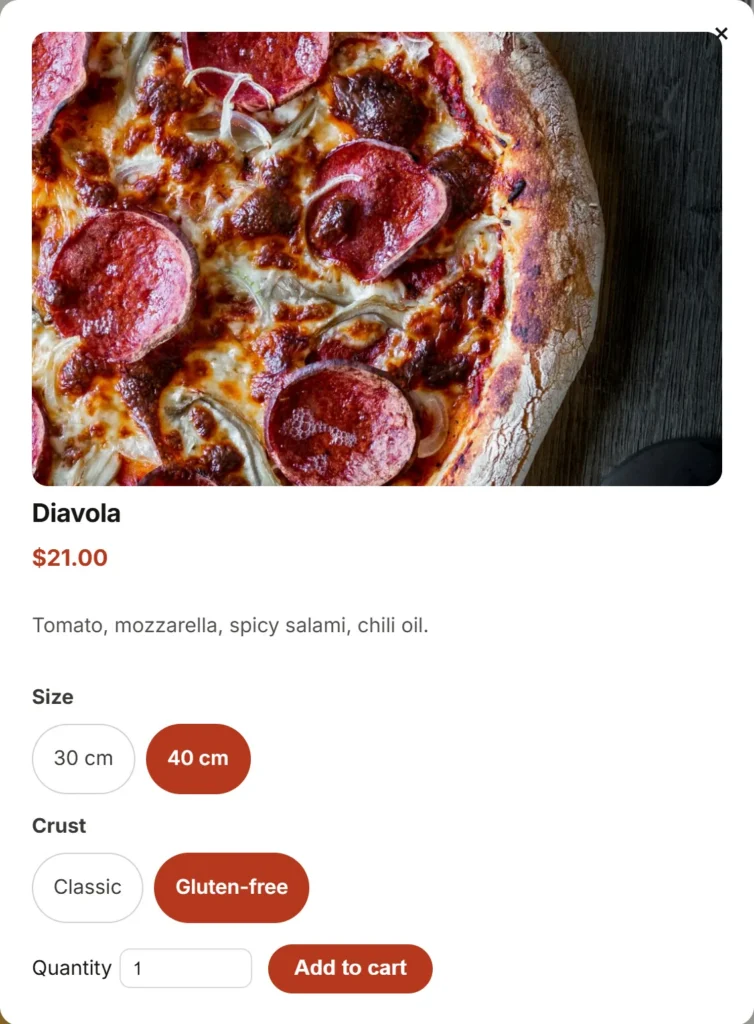
Checkout Premium
WooCommerce checkout blocks
The mode, the time and only the fields each mode needs, inside the WooCommerce Checkout block. A table number for eat in.
Menu
Your order of courses
Arrange the order of your menu headings in the settings area. For example: Starters – Main Dishes – Desserts – Beverages.
Extras Premium
A reminder at checkout
Choose to display a reminder pop-up at checkout that let your customers add beverages, a tip or other supplementaries of your choice. With the classic checkout.
Mobile
Ready for the phone in your guest’s hand.
Ready to use with desktop, tablets & mobile phones. On a phone, the categories and the search are at the top, the product popup has large buttons for size and options, and the cart can be a summary bar at the bottom of the screen with the total and the checkout button.
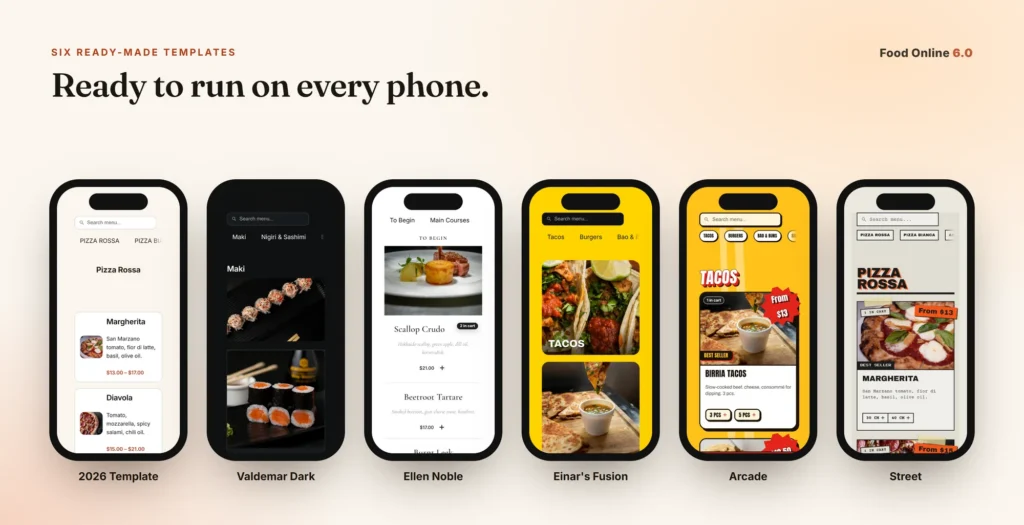
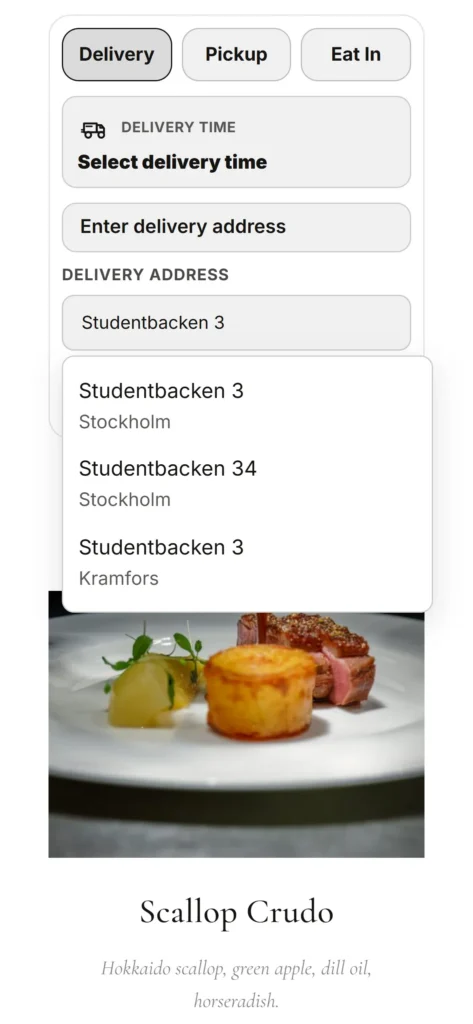
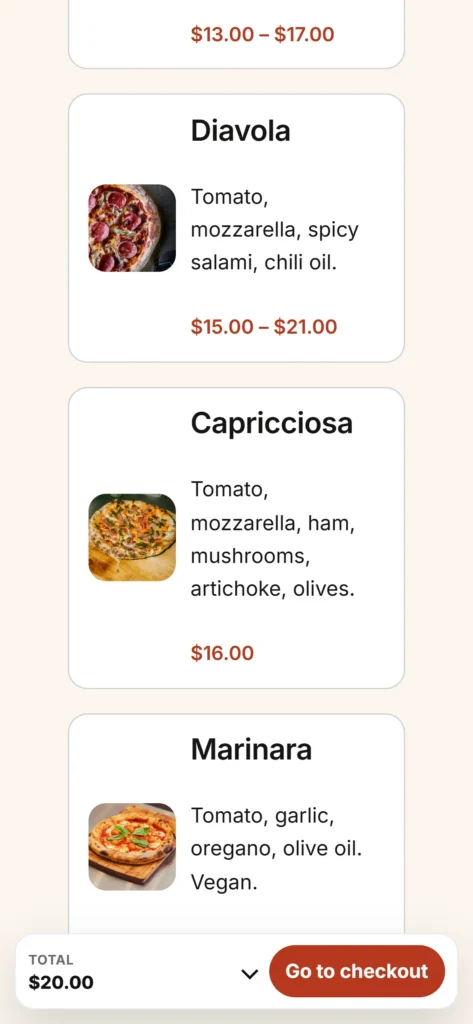
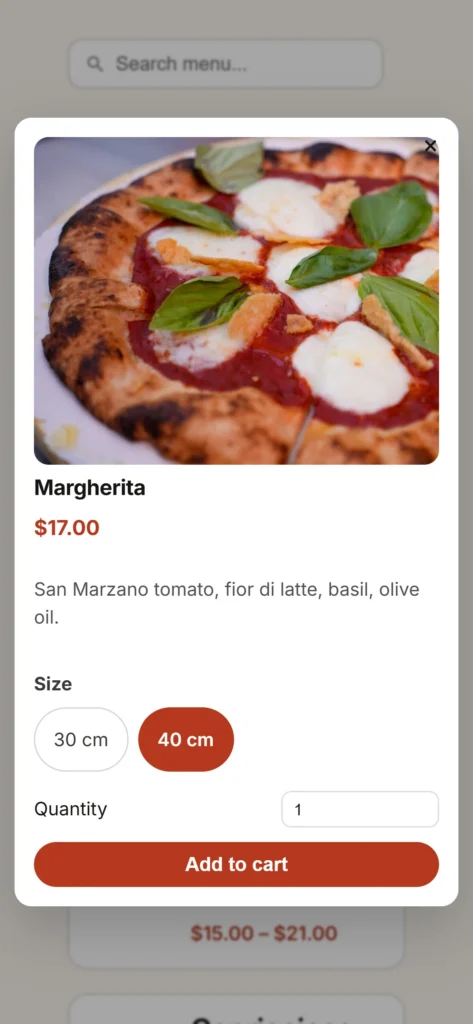
Under Mini cart → Mobile cart layout, choose expanded, hidden, or a summary bar.
How an order flows
Mode, address, time, checkout. In that order.
Food Online Menu Flow puts it all on one page: an order bar with the mode, the address, the time and your opening hours, above the menu and the mini cart. What the guest picks there follows the order into the checkout, the order emails and the admin.
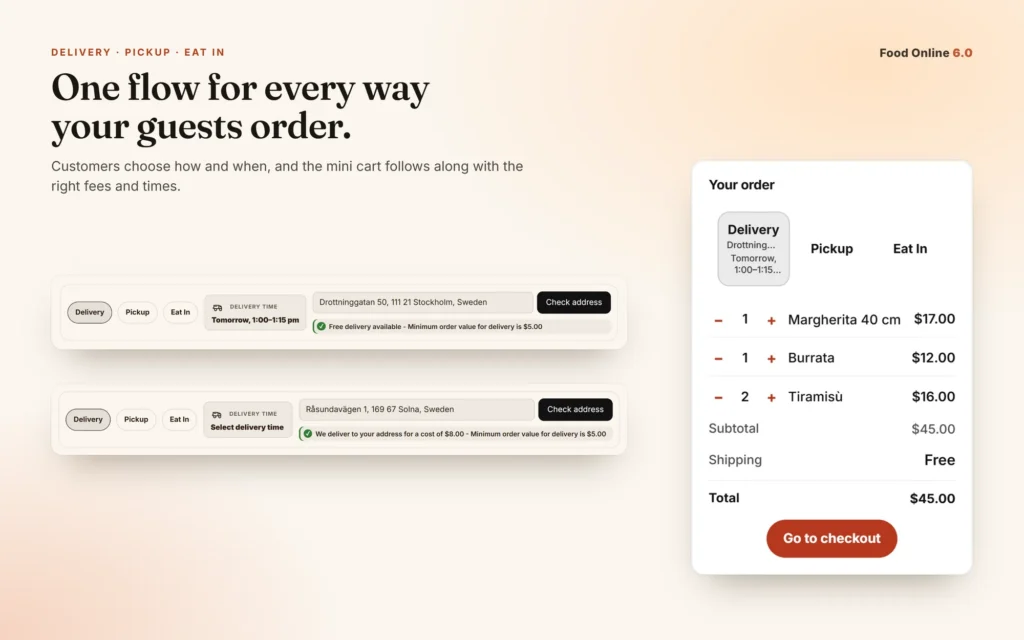
1. How they want it
Delivery, pickup or eat in. Offer one, two or all three, and show a different menu per mode if you like.
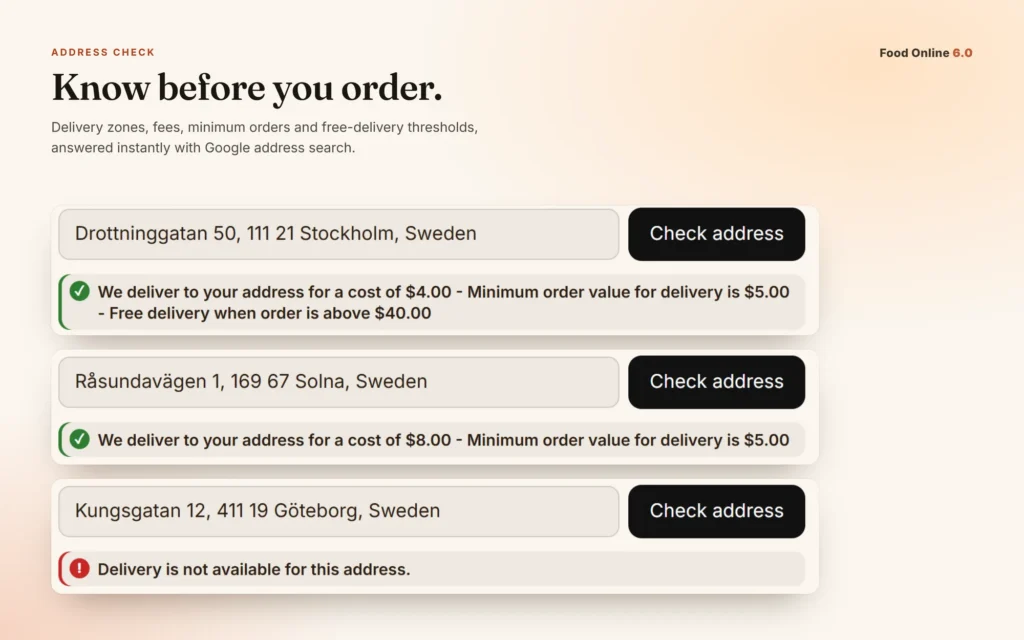
2. Where it goes
The address or postcode is checked against your WooCommerce shipping zones, with the price if you like. If Google cannot find an exact address, the guest marks the spot on a map.
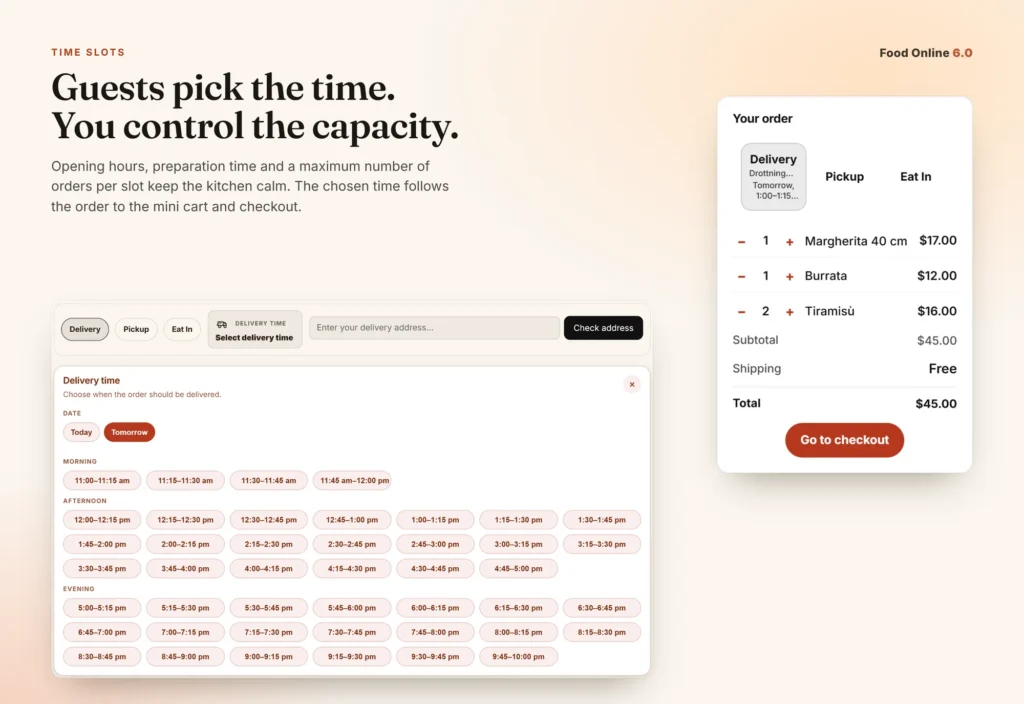
3. When it’s ready
Times follow your opening hours and your preparation time. Busy times push the first time back.
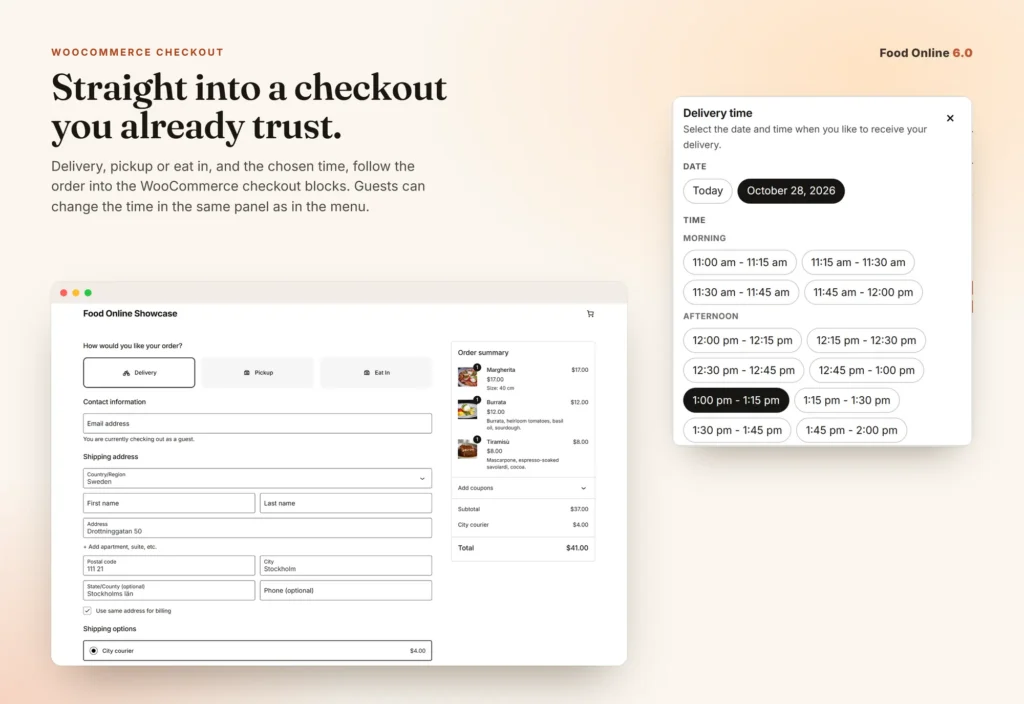
4. Checkout
The WooCommerce Checkout block asks only for what each mode needs. The guest can change the time in the same panel as on the menu.
Restaurant problems we solve
Which problem do you have?
Questions restaurants bring to us, and the setting that answers each one.
“We pay a commission on every order.”
Food Online runs on your own WooCommerce site. There is no commission per order.
“We get orders from addresses we don’t deliver to.”
Check the address or postcode on the menu page, before the guest fills the cart.
How an order flows → Premium
“The kitchen gets ten orders for the same time.”
Set a maximum number of orders or items per time slot. Count only some categories, for example pizzas.
Opening hours → Premium
“Busy evenings make deliveries late.”
Add extra minutes per order already in processing, so the first time offered moves back when the kitchen is busy.
“Lunch menu at noon, à la carte at night.”
Schedules decide which categories can be ordered when, and in which mode.
Opening hours → Premium
“We have more than one restaurant.”
Add pickup locations, each with its own hours and its own New order email.
Features → Premium
“Guests at the table want to order from their phone.”
Offer eat in, and ask only for a name and a table number.
Features → Premium
“Pickup guests shouldn’t type their address.”
Choose which checkout fields each mode asks for, for example only name and phone for pickup.
Setup → Premium
“Our site already has a [foodonline] page.”
Give it one of the new designs with template="…". No need to rebuild the page.
“We want to accept each order before we cook.”
Add Live Order Confirmation: the guest waits on the page while you accept or decline.
Opening hours and order times
The right menu, at the right time.
The Availability Schedule decides when you take orders: days, hours, modes, locations and which products. Order Time Management works out how long an order takes, so the first time and the expected time are realistic.
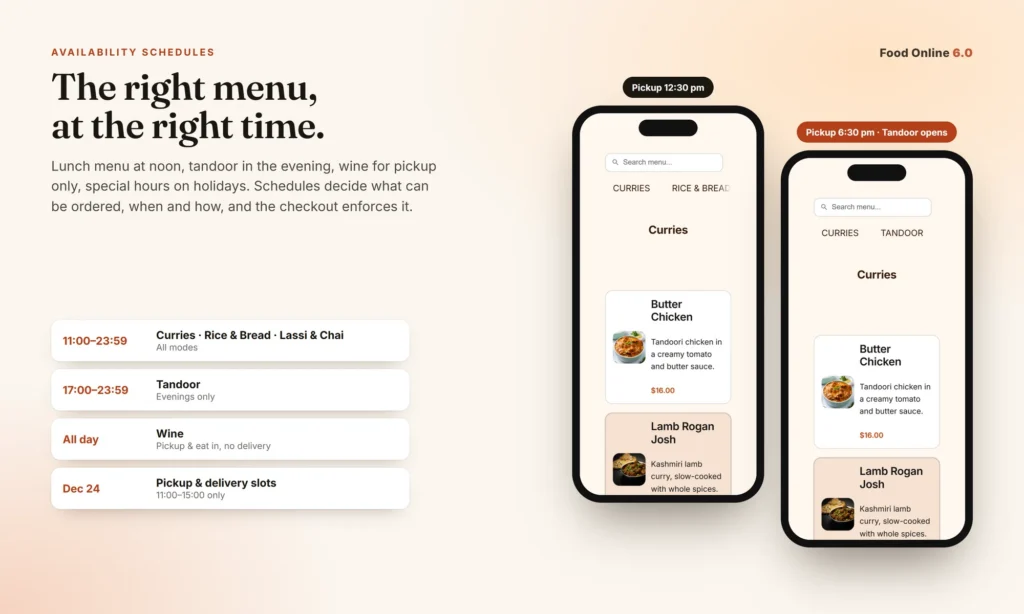
Show when you’re open
Menu Flow can show the opening hours at the end of the order bar, for example Open now · until 22:00, from your schedule or as your own text.

Times that fit the kitchen
- Preparation time fixed per order, or per product
- Extra time per order already in processing
- Delivery time fixed, or the driving time calculated by Google
- A maximum number of orders or items per time slot
- The expected time in the order bar, the mini cart, the emails and the thank-you page
Setup
From WooCommerce store to first order.
Seven steps, from the docs. Click any screenshot to enlarge it.
Add your dishes
Add your dishes as WooCommerce products and put them in product categories. The categories become the sections of the menu, for example Starters, Pizza and Drinks.
For choices such as size or toppings, use variable products or WooCommerce Product Add-Ons. The guest picks them in the product popup.
Set up shipping
| Mode | WooCommerce setting |
|---|---|
| Delivery | A shipping zone for your delivery area with Flat rate, Free shipping or Shipping Zones by Drawing. |
| Pickup | WooCommerce → Settings → Shipping → Local pickup, turned on, with at least one location. |
| Eat in | The Eat Here Method added to your shipping zones. |
Create the ordering page
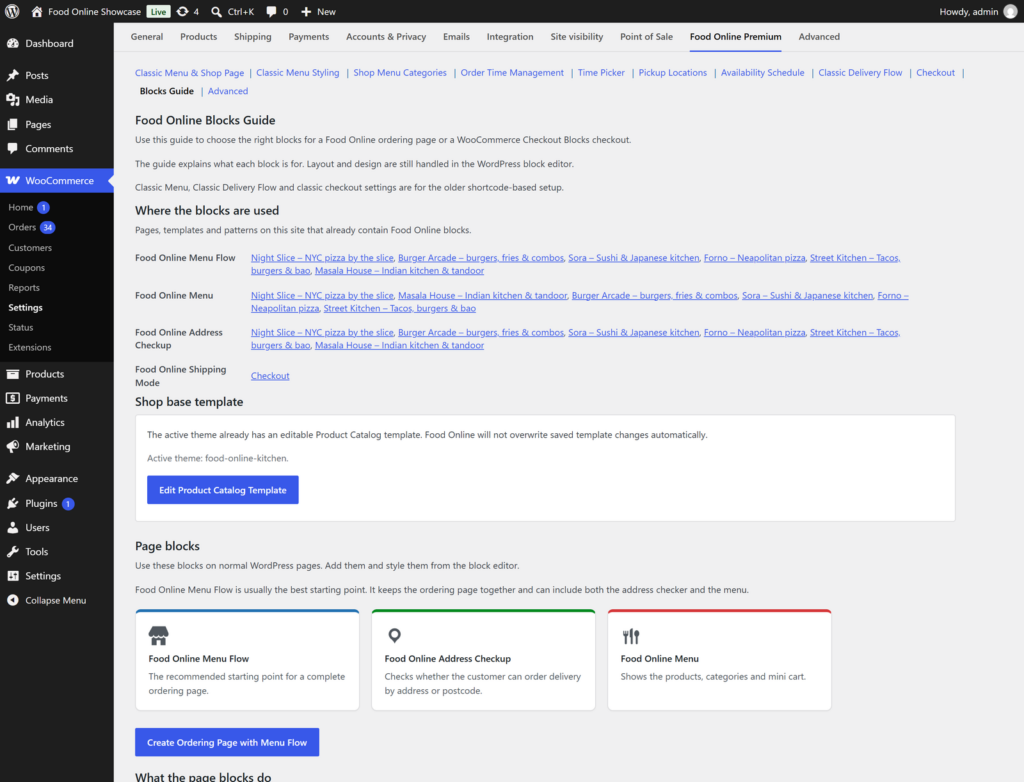
Under Food Online Premium → Blocks Guide, click Create Ordering Page with Menu Flow. Choose the modes you offer, and a design for the menu under Display Settings → Select layout template.

Set up the checkout
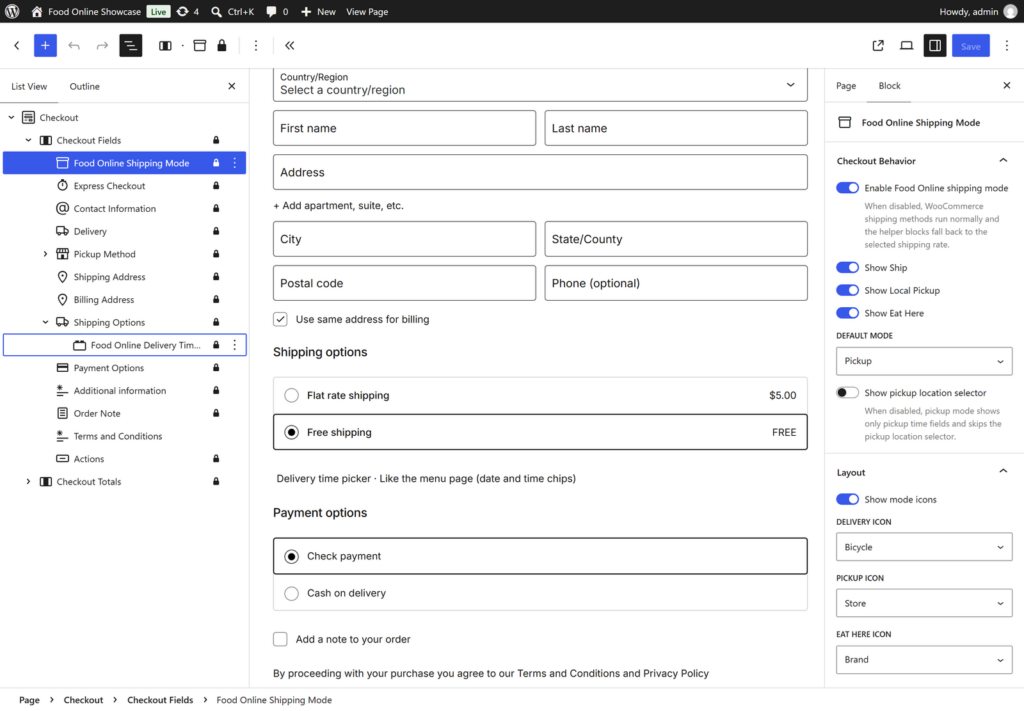
Set Checkout engine to Checkout Blocks. Food Online adds Shipping Mode and the time pickers to the WooCommerce Checkout block. Choose the modes, and which fields each mode needs.
Set opening hours and times
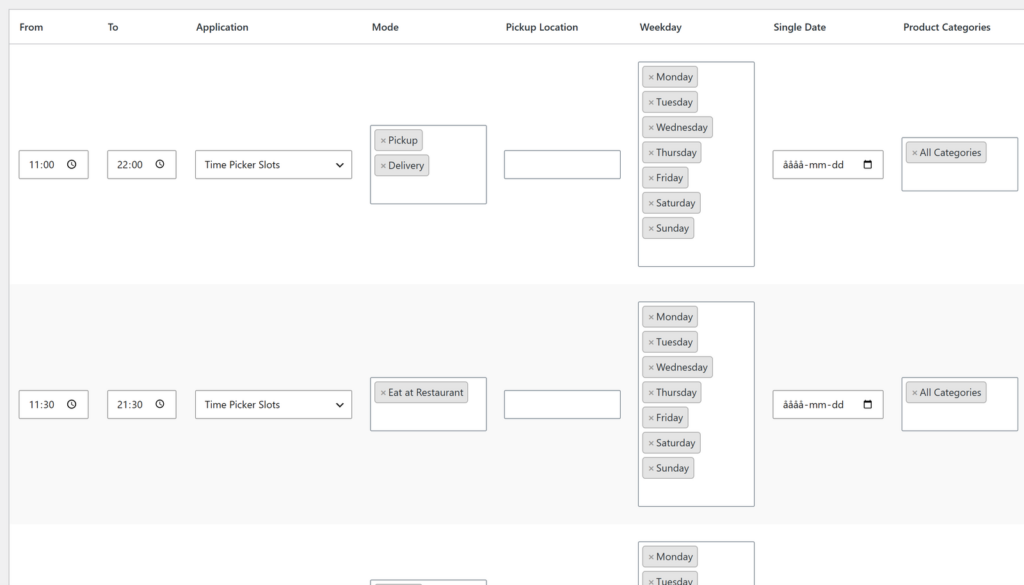
Add Time Picker Slots rows to the Availability Schedule for the days and hours you take orders, turn on the time picker, and set how long an order takes to prepare.
Check addresses (optional)
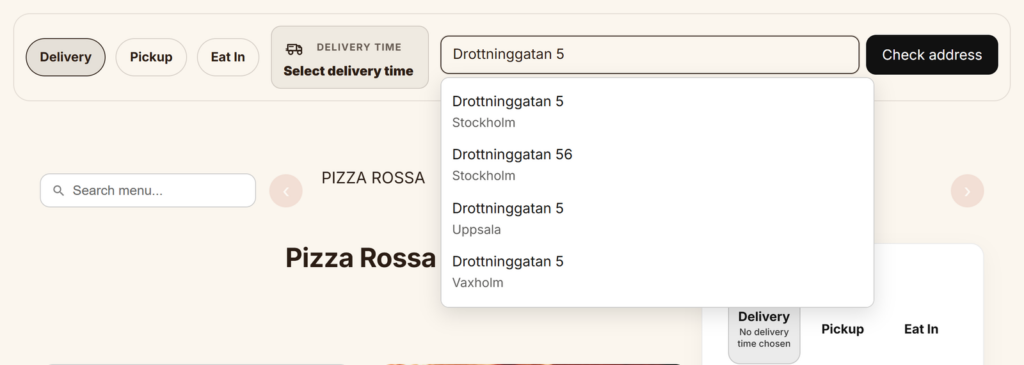
To check delivery addresses before the guest orders, enter a Google Maps API key in the Address Checkup block. A postcode check works without Google.
Place a test order
Place a test order for each mode. The admin order page shows the order type, the chosen time, the table number for eat in, the pickup location, and a map link when the guest picked the spot on a map. The emails show the same.
Every setting is in the documentation, with a guide per mode.
Classic shortcodes
Your shortcode pages get the new looks too.
The classic [foodonline] menu works as before, and can now use the same designs as the block. Or build your own layout from separate shortcodes, in the block editor, Elementor or another page builder.
| Shortcode | Shows |
|---|---|
[foodonline], [foodonline2] | The full menu with categories, mini cart and the delivery selector. Use [foodonline2] if your theme changes the product loop. |
[foodonline_menu] | Only the menu, without bars or cart. |
[foodonline_minicart] | The mini cart. |
[foodonline_delivery] | The delivery selector and address check. |
[foodonline_timepicker] | The time picker. |
Choose categories, tags, products and their order, and add template="arcade", layout="twocols" or category_image="yes": [foodonline categories="pizza,salad" template="street"].
Works with
Plays well with the rest of your kitchen.
Shipping Zones by Drawing
Draw your delivery area on a map, or set it as a radius or a driving distance, with a price per area. Food Online checks the address against it. shippingzonesplugin.com →
Live Order Confirmation
Accept or decline each order with a ready time, while the guest waits on the page. liveorderconfirmationplugin.com →
Shipday
Food Online orders can be sent to Shipday with the chosen delivery time and a calculated driver pickup time.
WooCommerce Product Add-Ons
Compatible with Product Add-Ons, a separate plugin from WooCommerce, for toppings, sides and extras in the product popup.
Your language
Premium includes English, German, Spanish, Italian, Dutch, Portuguese, Greek and Swedish. Adjust translations or translate to a new language with Loco Translate.
Block and classic themes
The menu block works in block themes and classic themes, and the shortcodes work on any page.
Reviews
Restaurants and agencies say it best.
“The Food Online developers continue to impress. The end client is very happy with the plugin and the kitchen staff like the ability to sort WooCommerce orders by dispatch/delivery times.”
Fantastic features, even got support on the weekend · WordPress.org
“The Free version is very good, but the premium version is fantastic. It’s worth the investment.”
Excellent Plugin! · WordPress.org
“Really awesome support (Pro version in use) and can be modified kinda well to match different type of visual needs.”
Have been really satisfied · WordPress.org
“Todo lo necesario para empezar tu restaurante online!”
Plugin perfecto para Delivery & Take Away! · WordPress.org
Pricing
Start free. Go Premium when you’re ready.
Free
$0
On WordPress.org
- The Food Online Menu block and all designs
- Classic shortcodes
- Product popup and mini cart
Premium
Premium
$49 / year
1 site licence
- Delivery, pickup and eat in
- Address check, time picker and schedules
- Checkout blocks
- Support and updates for one year
Bundle
Premium + Live Order Confirmation
$69 / year
Both plugins, 1 site
- Food Online Premium
- Live Order Confirmation
- Support and updates for one year
Licences for 5 and 25 sites are on arosoft.se.
Free or Premium?
| Free | Premium | |
|---|---|---|
| Food Online Menu block with six designs | ✓ | ✓ |
Classic shortcodes with template, layout and category_image | ✓ | ✓ |
| Product popup, mini cart and variable products | ✓ | ✓ |
| Compatible with WooCommerce Product Add-Ons (separate plugin from WooCommerce) | ✓ | ✓ |
| Manual category order | ✓ | ✓ |
| Preparation time and order-ready time | ✓ | ✓ |
| Delivery, pickup and eat in | – | ✓ |
| Address or postcode check before ordering | – | ✓ |
| Time picker with a maximum per time slot | – | ✓ |
| Schedules per mode, and a menu per mode | – | ✓ |
| Several pickup locations | – | ✓ |
| Minimum order value for delivery | – | ✓ |
| Checkout blocks with fields per mode | – | ✓ |
| Delivery time calculated by Google | – | ✓ |
Premium is a complete plugin of its own. Deactivate the free version, install Premium, and your settings are kept.
FAQ
Good to know.
What do I need?
WordPress 6.6, WooCommerce 9.8 and PHP 7.4 or later.
Does it work with the WooCommerce block checkout?
Yes. Food Online adds the mode, the time and only the fields each mode needs to the Checkout block. The classic checkout works too.
Do I need a Google Maps API key?
Only for the address check and calculated delivery times. A postcode check works without Google.
Can I draw my delivery area on a map?
Yes, with Shipping Zones by Drawing.
Can I offer toppings and side dishes?
Yes, with variable products, or with WooCommerce Product Add-Ons.
I’m updating from 5.x. Anything to know?
Yes. Read Upgrading to 6.0 first.
Is support included?
Yes. The licence includes a year of updates and support, renewed yearly. The plugin keeps working if you stop renewing; you just stop getting updates and support.
Open for orders this week.
Start with the free version, or go Premium from $49 a year.
Version 6.0.2 · November 5, 2026 · What's new